
7 minutes
TL;DR —
bjs bbsopens a full-screen catalog right in your terminalThe text window where you type commands and read their output; the only surface a CLI gets to draw on., and you drive it with the keyboard. It shows components, courses, assets, and your own dev projects. Every component row shows a creditThe BabylonJS Market's spendable unit; acquiring a catalog component costs a number of credits set by the manifest. price, or an ownedA component you already have access to — free, previously acquired, or covered by your membership — and can pull without spending. badge if you already have it.bjs creditsshows your balance and ledger. Here's what's new: cost and ownership are set per account. The server manifestShort for the library manifest — the data the BBS reads to draw cost and owned/locked state on every row. returns ahasAccessflag for you, and that flag decides what you see. The pull, eject, and inject lessons ahead all read that owned-versus-locked state.
Last lesson, Scaffold a Project, ended with a running game and an empty spot for community code. That spot is the src/Components/ folder, plus a registry.ts that finds anything you drop in it. Now you need something to drop in. And most of what you want to build, someone already built and published. So before you write any code, you go shopping.
The store is one command: bjs bbs. It is not a menu that prints a list and quits.
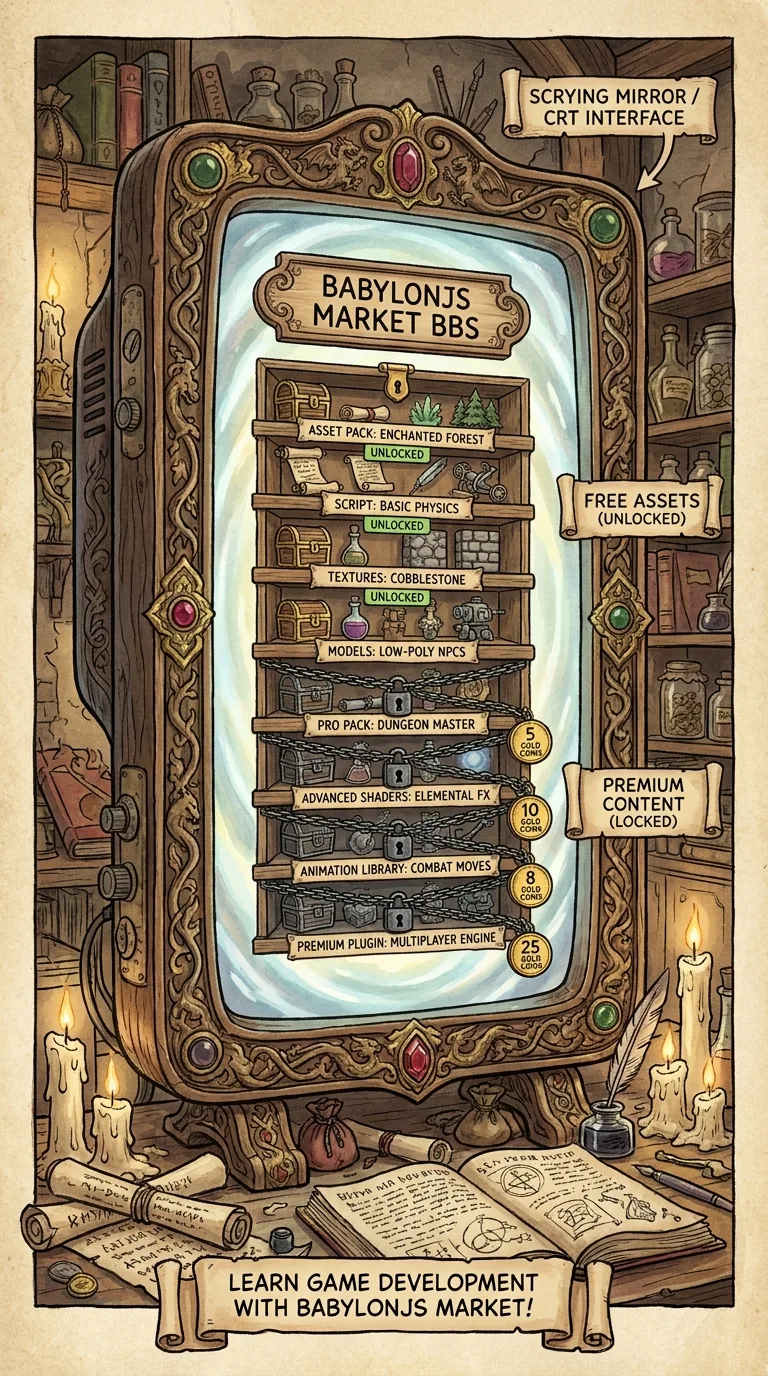
What opens is a full-screen, animated bulletin board you drive with the keyboard. Courses, components, assets, your downloads, and the dev projects on your own disk all show at once. Its look comes from the old dial-up bulletin boards. But that raises a question. A CLICommand-line interface, a program you drive by typing commands into a terminal instead of clicking a window. (command-line interface) has only one place to draw: a stream of text down a terminal. There is no window, no canvas, no mouse-first layout. So how does it act like an app that redraws as you arrow up and down, without the screen flickering?
The bbs command and its options
The BBSBulletin board system, the dial-up-era online catalog whose look and keyboard-driven feel bjs bbs recreates in your terminal. is a normal subcommand, and it takes a few options — each one a switch you flip when you launch the board. The most useful is the themeA named color palette the BBS draws its whole interface in, chosen once and remembered for later sessions..
Six themes come built in: classic, desert, matrix, commando, sandiego, and ed209. classic is the default. Want green text on black for one session? Try this:
Pick a theme inside the settings screen instead and it sticks. Every future session opens in that theme. The other flags are about your connection, not the look. --no-animations skips the transitions on a slow link. --no-mouse falls back to keys only. And --saveTo ./assets sets where a file you grab from inside the BBS lands, instead of the folder you launched from:
Moving around works the way you'd expect. Arrow keys move, enter opens, and Q or escape backs you out.
Why the screen doesn't flicker
A terminal feels one-directional. You write characters, and they appear, top to bottom. The simple way to "animate" it is to clear the screen and reprint the whole layout every frame. Do that sixty times a second and your eye catches the gap between cleared and fully redrawn. The screen flickers.
The BBS avoids that with two tricks. First it draws the next frame into an off-screen buffer. Then it compares that buffer to what's already on screen and repaints only the cells that changed. Those two tricks are called double bufferingDrawing the next frame to an off-screen buffer and swapping it in whole, so the screen never shows a half-finished redraw. and delta renderingRepainting only the characters that changed since the last frame instead of clearing and redrawing the entire screen.. A row you didn't touch is never reprinted, so there's no blank moment to flicker. A game renderer does the same thing every frame: build the next picture out of sight, then show it all at once.
The same login from Lesson 1 powers this, too. If the BBS needs to know who you are to show owned-versus-locked state, it runs the device-code handshake in a popup inside the board. It's the same flow as before, just drawn in the theme.
Every component row has a price
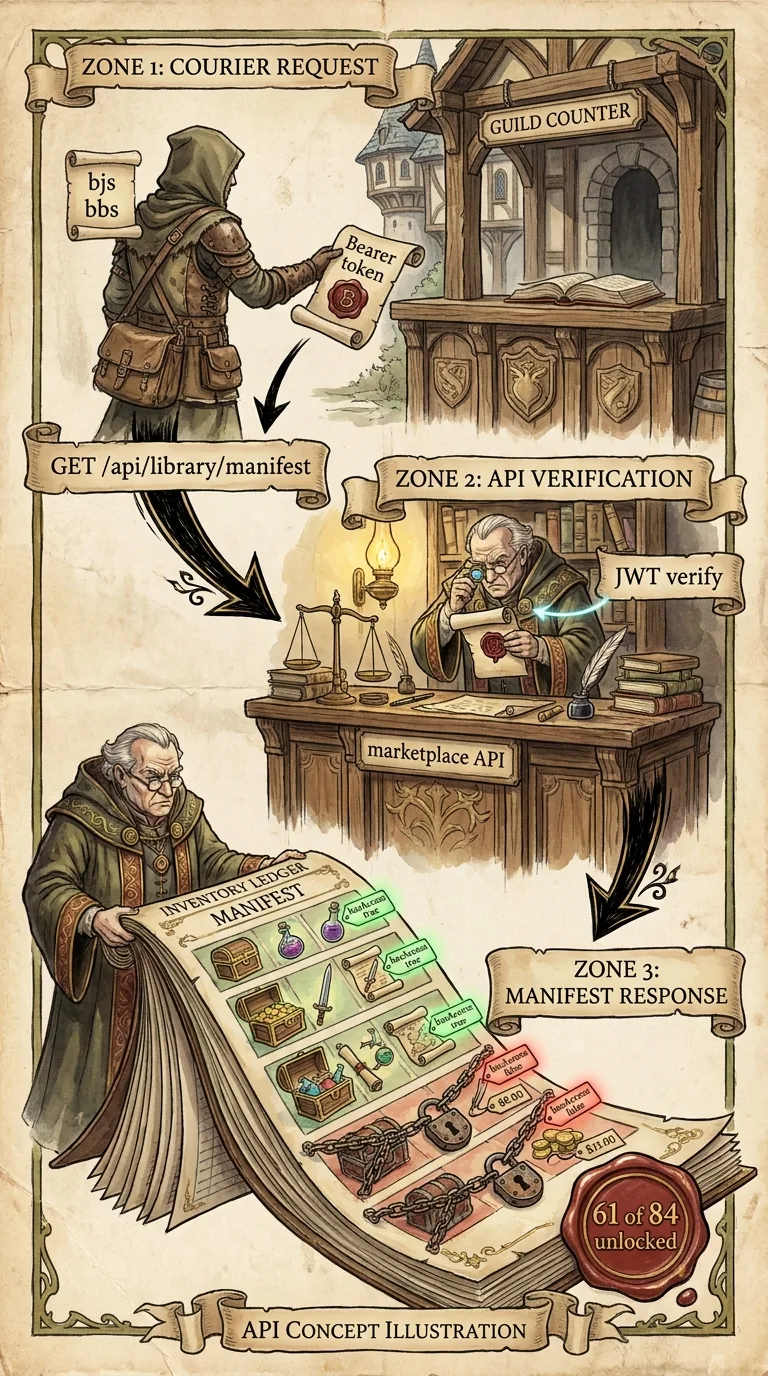
Scroll into the component shelves and each row shows more than a name. There's a description, a dependency line, and something new in this rebuild: a credit marker. That marker is either a cost or an owned badge if it's already yours. That column isn't just for looks. The server sets the cost and sends it in its library manifestThe server's list of every catalog file with its category, dependencies, cost, and whether your account already has access.. The row reads that cost for your account, and drops it to zero when your account already has access.
Two things about your account decide the marker. The first is ownership: the server already knows whether your account holds a component, and it hands that answer back with the manifest — so the owned badge is just that yes/no, copied straight onto the row. The second is cost. If you own it, the cost is zero. If you don't, it's whatever the manifest charges, which falls back to one credit when nothing else is set. So the difference between an owned badge and a "3 credits" tag is one flag the server sends back about your account. That's why the same shelf can look different to two members.
Here's a made-up shelf, so you can see the shape of a row before you open one yourself:
That needs: column hints at the footprint, and it matters more than it looks. When you acquire a component, you get its full dependency closureThe full set a component drags in: itself plus everything it needs, transitively, so acquiring one grants them all.. Homing pulls in Bullet, so you pay once and get both. That means "I'll just grab this one thing" can quietly turn into three. One warning: the needs: line shows only the direct dependencies the manifest reports, not the whole web. The server works out the full closure, and the final credit cost, when you acquire. So the real footprint can be larger than that one line suggests. Read the dependency line before you reach for a row. The eject command (Lesson 5) walks that same dependency web for you.
Reading your balance
If acquiring costs credits, you need a way to see how many you have and where they went. That's a separate, smaller command: bjs credits.
It takes one option, --json, for scripts. Run it plain and it prints your balance and the recent ledger. The ledger is the running record of what you earned and spent. It shows the same account balance the BBS shows:
The minus rows are acquisitions. Notice the second one names the dependency it carried along. Earning credits is the other side of this loop. When a component you submit gets merged (Lesson 7), credits land here.
Make a shortlist without spending credits
Open the board with your scaffolded game in mind. You already have a player and a camera. What comes next? A score? An enemy? A health bar for when the enemy hits you? Arrow through the component shelves, read the dependency lines, and check owned-versus-cost. Write down the two or three names that match the feature you're imagining. But don't acquire anything yet.
Acquiring spends credits, and it's a careful choice you'll make in Lesson 5. You'll do it alongside arcade eject, the free way to pull the arcade package's own built-in components into your code. For now, the catalog is open in front of you. It's themed, it shows the real shelf and your own dev projects, your balance is read, and you have a short list of names. Next you turn those names into files.
Next: Download Assets — bjs download grabs a marketplace asset using a key that self-destructs in seconds, and why it's the wrong tool for a component's source.