
6 minutes
The Dev Loop
TL;DR — Get a ViteThe build tool with two jobs: serve files instantly while you develop, and bundle them once for production. + TypeScriptJavaScript with type notes added; the compiler checks the notes, then erases them so the browser only ever runs plain JavaScript. project running. Work the edit-save-see-it-live loop. Then install and importThe statement that pulls a named export out of another file or package and into the current file. the real
@babylonjsmarket/ecsframework that the rest of the course reads. Skip this lesson if you already know two things: TypeScript erases to plain JavaScriptThe language the web runs on directly, and the only language a browser actually executes., and Vite serves files untouched in dev but bundles them with RollupThe tree-shaking bundler Vite uses for production builds, combining your source into a few optimized files. for production. This is the setup-and-orientation lesson.
This course teaches TypeScript and Vite by reading real code that ships to users. That code is the actual source of a game framework called @babylonjsmarket/ecs, and it runs in production right now. ("ECS" is just part of the package name for now. It names a way of structuring games that you'll meet later.) You learn a language the way you learned to read English. You are surrounded by sentences that mean something, and you pick up the grammar as you go.
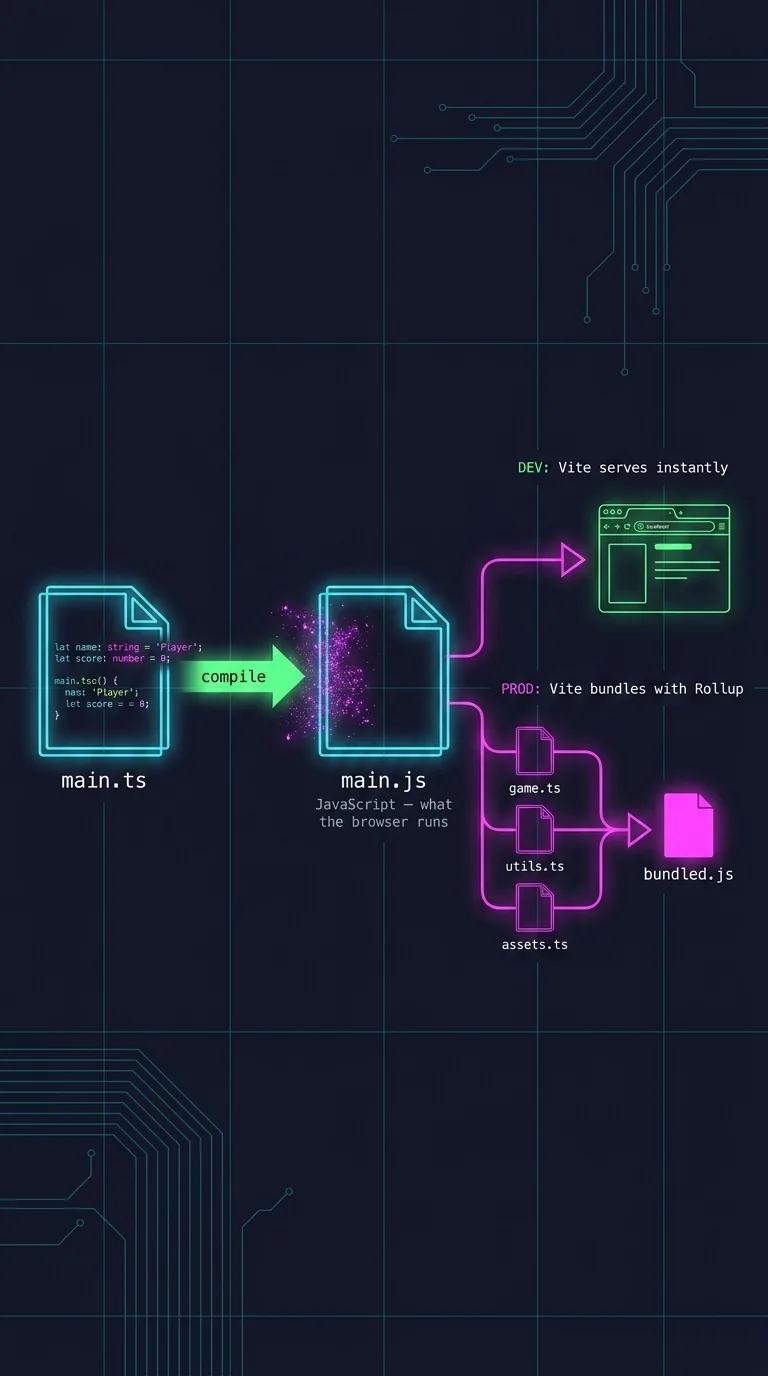
But the browser can't run a single line of that source. The framework is hundreds of TypeScript files, and TypeScript never reaches a browser. Two tools sit between the code you write and the page that updates the moment you save. This first lesson gets a project running and sets up that cycle, your dev loop: edit a file, see it change, over and over, thousands of times. Let's start with the two tools the course is named after.
What TypeScript actually is
Here's one sentence to remember: TypeScript is JavaScript plus types, and the browser never runs it.
JavaScript is the language the web runs on. It works, but it's permissive. It will let you add a number to a piece of text, or pass the wrong value somewhere. You won't find out until that line runs, maybe in front of a user.
TypeScript is a layer on top. The "types" are small notes you attach to values. Each note describes what kind of thing a value is. We'll go deep on this next lesson. The compiler checks those notes against how you use the values. If you promised a number but handed it text, the compiler tells you before the code runs.
Here's the part that surprises people. Once the compiler has checked your code, it erases every typeA label for the shape of a value, describing what kind of thing it is. note and emits plain JavaScript. The browser has no idea TypeScript was ever involved, so types can never change what runs. This compileTo translate source code into another form; TypeScript-to-JavaScript is sometimes called transpiling. step finishes in milliseconds, one file at a time, as Vite serves it. (TypeScript-to-JavaScript is sometimes called transpiling.) There's no slow build step to wait through.
The relationship fits in one table:
| JavaScript | TypeScript | |
|---|---|---|
| Who runs it | The browser, directly | Nothing — it compiles away first |
| When mistakes surface | When that line runs, in front of a user | At author time, in your editor |
| Catches a wrong-type value | No | Yes, before the code ships |
| What the browser receives | Exactly what you wrote | The JavaScript it compiles to |
This leads to the most useful fact in the course: every line of JavaScript you already know is already valid TypeScript. The moment you add a type note, the compiler starts watching for mistakes.
Here let introduces a value you can change later. The = sign means "put the right side into the left." It does not mean "equals" like in math. So score = score + 10 reads as "take score, add ten, and store the result back in score." Now type lives = "three" on the next line. The compiler stops you with a red squiggle. That squiggle is the star of the next lesson.
What Vite is, and why it exists
Vite (say it "veet," French for "fast") is the tool you run while you develop. It's one tool with two jobs, and the two jobs want opposite things:
| Job one: dev | Job two: production | |
|---|---|---|
| Goal | Save a file, see it instantly | One tight package for strangers |
| Strategy | Serve files on demand, untouched | Bundle everything together |
| Tool under the hood | esbuildThe Go-written transformer Vite uses in dev to strip types and translate each file the instant the browser asks for it — far faster than the older translator, Babel. | Rollup |
| Startup cost | Milliseconds, flat as you grow | Slower, runs once before you ship |
Job one: serve your code while you work
The goal is to save a file and see the result right away. The old way ran a slow step first. It gathered all your files, translated them, and stitched them into one big file before the browser could load anything. And it got slower as the project grew.
Vite skips most of that. Modern browsers load JavaScript directly using ES modules (the import/export system you'll use all the time). The browser can load each file on its own, so Vite no longer has to glue them all together first. It just hands over the one file the browser asks for, and it translates that file the moment it's asked for. With no bundling step up front, the dev server starts in milliseconds. It stays fast no matter how large the project gets.
For that translation, Vite uses esbuild. It strips the types out of each file the instant the browser asks for it. esbuild is written in Go and runs at native speed. It is at least ten times faster than the older translator, Babel.
The last piece of job one is Hot Module Replacement, or HMRHot Module Replacement; on save, Vite re-sends only the file that changed and swaps it in place without a full page reload.. When you save, Vite doesn't reload the whole page. It figures out which file changed and re-sends only that one file, then swaps it in place. Often the state on screen stays put. This is the heart of your dev loop: edit, glance at the browser, it's already updated, edit again.
Job two: build your code for production
Shipping to real users needs one tight, fast package that loads quickly on a stranger's phone. For production, Vite switches tools. It bundles everything with Rollup, a tree-shaking bundler that trims and compresses your code. (Jargon note: to bundleTo combine many source files into a few optimized ones for shipping to users. is to combine many source files into a few optimized ones.) The final lesson, Building for Production, covers that.
Getting a project running
The commands below go in your terminal. The terminal is the command-line window where you type instructions to your computer. Search your OS for "Terminal" to open one. You'll need Node.jsThe runtime that runs JavaScript outside the browser; it ships with npm and runs Vite. installed (it comes with npm). Type node --version. If it prints a number, you're set. This command scaffolds a fresh Vite project, which means it sets up the starter files and folders for you:
Each piece:
| Part | What it does |
|---|---|
npm create vite@latest | Runs Vite's project creator at its newest version |
my-game | Names the folder it scaffolds |
-- | Separates npmThe package registry and command-line tool you install dependencies and run project scripts with.'s own arguments from the ones meant for Vite |
--template vanilla-ts | Asks for a plain ("vanilla") project set up for ts, TypeScript |
Vanilla is on purpose. A framework adds its own layers on top; vanilla is the language itself. Now step into the folder, install dependencies, and start the server:
| Command | What it does |
|---|---|
cd my-game | Change directory — move into the project folder |
npm install | Download the packages your project needs into node_modules |
npm run dev | Start Vite in its serve-fast mode |
The terminal prints a local address like http://localhost:5173/. Open it, and there's your app, running. Leave the terminal alone. The server keeps watching your files.
Editing a file and seeing it change live
Open src/main.ts in your editor. Clear out the starter's demo code and replace it with something tiny:
Don't worry about querySelector or the if-block yet. The vanilla-ts template ships an index.html with a <div id="app">. These two lines grab that spot on the page and write the text into it. All we care about is that the text changes when you save. Save and look at the browser. The text appears almost instantly. Change the message and save again. For a small entry file like this one, Vite does a fast reload. In real component code, HMR swaps just the changed module and keeps the on-screen state. Either way, the loop is the same: edit, glance, it's updated. That is the dev loop. (The : string and <HTMLDivElement> bits get covered in Types That Catch Bugs and Generics and Interfaces.)
Installing and importing a real framework
Stop the server (Ctrl+C), then install the framework:
This downloads the published @babylonjsmarket/ecs package into node_modules. It's the same package real games use. The leading @babylonjsmarket/ is a scopeA namespace prefix like @babylonjsmarket/ that groups related packages under one publisher., a namespace that groups related packages under one publisher, like a surname.
Back in src/main.ts, bring one piece of the framework in and use it:
That first line is an import, the ES-module mechanism from earlier. The curly braces mean "reach into @babylonjsmarket/ecs and pull out the thing named World." World is a real exportThe marking that makes a value in one file available for other files to import.. The next line, new World(), creates one. (new makes a fresh instance of a class, which gets its own lesson, Classes.) console.log prints a message to your browser's developer console. The console is a panel for peeking at what your code is doing. Open it with F12, or right-click > Inspect > Console.
Start the server with npm run dev, open that developer console, and the log line is there. You imported and ran a piece of a production game framework, and it compiled cleanly. We won't do anything with the World yet. Over the coming lessons, we'll open these classes one at a time. They're all built from the same handful of ideas. The code for the whole course now sits in your node_modules, ready to read.
Why a fast loop matters for learning
We set up the tooling first because learning is itself a loop: try something, see what happens, adjust, try again. A faster loop means more trips around it. When saving means waiting, you experiment less and less, until you stop.
Vite drops that cost to nearly zero. So "I wonder what happens if…" becomes a save and a glance. The next lesson meets the type system the same way: you type something wrong and watch a red squiggle appear.
References
- Vite — Getting Started — the official Vite guide (dev server, build).
- TypeScript — official site — the language, docs, and playground.
- Node.js — the runtime you run
npmand Vite on. - npm — the package registry you install
@babylonjsmarket/ecsfrom.
Next: Types That Catch Bugs — the type system, and the red squiggle that catches a bug before you ever run the code.