
9 minutes
TL;DR — Mount the free vizA debug overlay that draws the otherwise-invisible ECS world — its entities, events, and frame rate — as live on-screen panels. layer to get live Entities, EventBus, and FPS panels over your canvas. Then build your own panel. Its sliderAn HTML range input you drag to set a number between a min and a max. writes straight into a running component, and the value stays saved across reloads. Skip this lesson if you already add debug overlays to a running game and tune values live. The new part here is this project's
mountArcadeVizandvizStoretools, not the idea itself.
Last lesson you built a pool. It parks entities instead of destroying them. Then you drove whole waves by changing a spawner's interval and maxAlive while the game ran. It worked, but you could not see it. Parked entities are invisible. A spawner's live count is just a number in memory. And you set every difficulty value without ever watching it move. That is how you have set every number in this course, including this one:
Where did the 6 come from? You guessed. You can't judge a speed by reading the number. You have to watch it move and see how it feels. A hero at 5.5 feels slow. At 7 it feels twitchy. Nobody can tell you which one is right until they try it with the game running. That difference between a number that feels right and one that feels almost-right is game feelHow a movement or action feels in motion rather than how its numbers read — judged by watching and playing, not by inspecting the value. The reason tuning happens live.. It never shows up on the page. You can only feel it while you play. Arcade games are full of this. A pinball flipper at strength 14 feels weak, and at 16 it feels strong. Pac-Man's ghosts are tuned to within a few percent of his own speed, which is the line between a fun chase and an impossible one.
The problem is the slow loop. You edit the JSON, save, and wait for the reload. Then you drive the hero back to the spot you were testing and feel it again. Then you repeat. Each round takes about fifteen seconds. Worse, by the time the page reloads, you have forgotten what 5.5 felt like. This lesson replaces that loop with a slider you drag while the game runs. The number changes under your fingers. The same tools also make the invisible world visible. So the queries from Lesson 3, the events from Lesson 4, and the pool from Lesson 7 finally have something to look at.
Mounting the viz layer and its three panels
The free debug layer is its own package, @babylonjsmarket/viz. The arcade package wraps the whole setup in one call. You add it to the bootstrap from Scenes as Data:
Here is what that one call does. It mounts three panels over your canvas, and you wrote none of them:
Read it top to bottom and you can find all three panels in the code. The Entities panel (registerPanel with title 'Entities') shows a snapshot of every live entity, its tags, and its component classes. It resyncs whenever an entity is created or removed. The EventBus debugger mounts itself the same way every component does. It is a System plus a Component dropped onto a __debugger entity, and F4 toggles it. The FPS overlay is a plain counter pinned to the top edge. It lives outside the panel system.
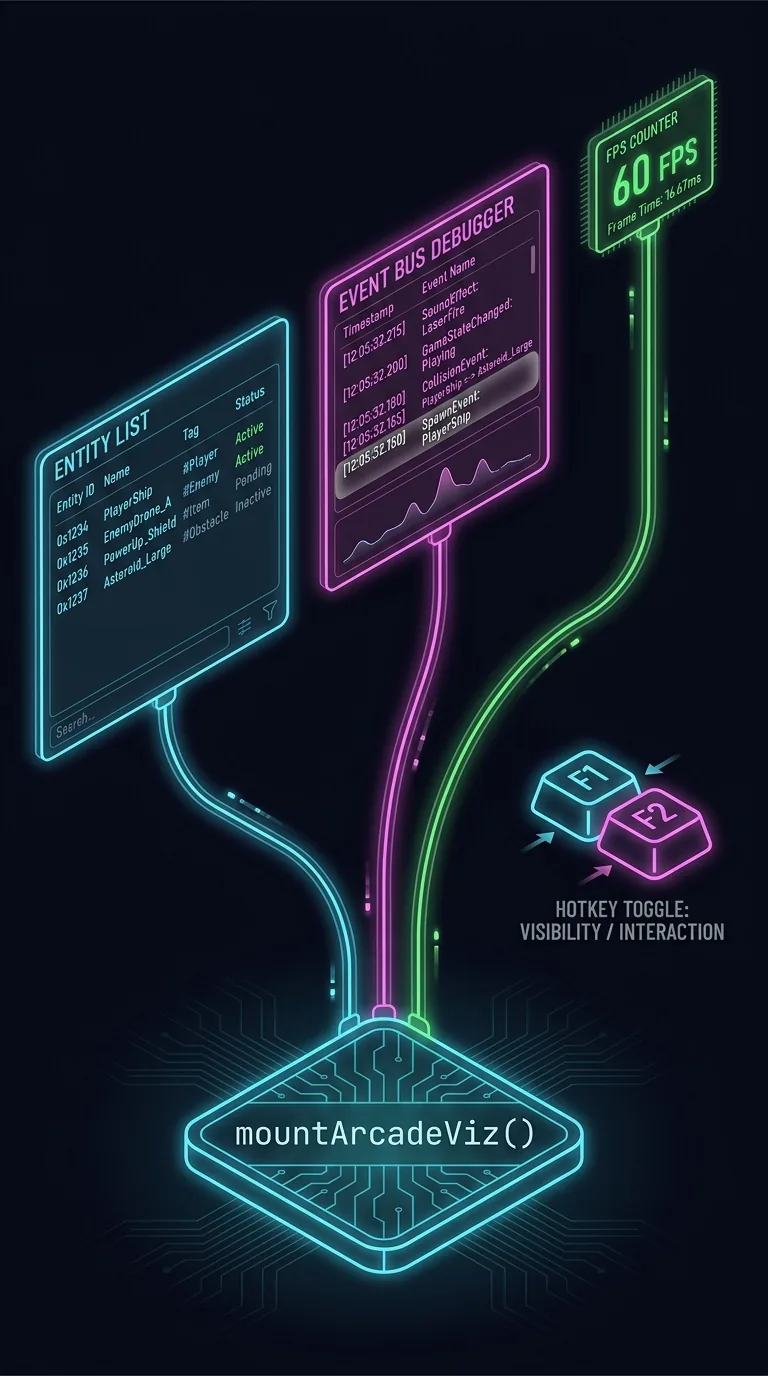
These three panels are the visual answer to three earlier lessons. The Entities panel shows the roster from Pools and Spawners clearly. Run your pooled coin drops and the list stays at twelve rows no matter how busy the game gets. Parked entities still exist. They have only dropped out of every query through the active flag from The Five Filters. The EventBus debugger shows the score.changed and health.damaged events from Events, Not References in real time. It groups them by entity and flashes when one fires. For several lessons now, you have emitted a name and trusted that someone heard it. Now you can watch the names scroll by. That is its own small proof.
Every panel shares the same frame. You can drag it, dock it to either edge, resize it, collapse it, and toggle it with a hotkey. A panel that does not claim a key gets the next free F-key. The panel's position, size, and open state save to localStorageA small per-site key-value store in the browser that survives page reloads.. They are namespacedStored under a separate key per scene, so two scenes' saved settings never overwrite each other. per scene by the sceneName you pass, which is the one option you will always set:
The defaults are set up so that passing only sceneName is enough. Mount the viz layer in development only. Gate the import on import.meta.env.DEV, and a production build will tree-shakeA bundler optimization that drops code no shipped path can reach, so a dev-only import adds nothing to production. the whole layer away:
Two imports, two jobs. mountArcadeViz from @babylonjsmarket/arcade/viz registers the panels. mountViz from @babylonjsmarket/viz/solid is the SolidThe reactive UI library the viz layer is built on; panel content is written as Solid JSX with native HTML inputs. renderer that actually draws them, plus the gear menu and theme. The old @babylonjsmarket/ecs/viz path from older docs is gone. Viz is its own package now.
The stock components' built-in debuggers
Most arcade components come with their own debug panelA floating on-screen window that shows or edits some part of a running game while it plays.. It is a component/system pair named {Name}Debugger. Because a debugger is a component, you add it with the same resolver you used in Scenes as Data. A resolver maps a component name in the JSON to a dynamic importLoading a module's code only when it's actually needed, instead of up front — here, so the debug code ships only when a scene names it.. So the viz module only has to export it in the exact {Name}Component and {Name}System shape that the registry looks up by name:
Now a scene can name it next to the component it tunes:
Reload, and a "Keyboard Mover" panel appears. It already has a speed slider wired to the hero. Drag it and the capsule's speed changes while you steer, and you wrote no bindingThe wiring that connects a UI control to the value it reads and writes — here, the slider to the component's speed. yourself. Every stock debugger takes the same optional fields:
visible starts the panel open instead of waiting on a hotkey. activationKey pins a KeyboardEvent.code, or you can leave it off for the auto F-key. position docks it to one of the four corners. A pinned key is used exactly as given and never de-duplicated. So two panels that both pin Digit5 will collide on that key. Panels that leave the key off each get the next free F-key. When you run several at once, leave the key off or give each one a different key. MovementDebugger does the same for gravity and jump, and so do the debuggers for Score, ArcCamera, and most of the catalog. A debug panel arrives the way everything in this framework does. It is a component in a scene file, loaded on demand by a resolver, and built by a system. Even the EventBus debugger is a component/system pair on a __debugger entity, as the mountArcadeViz source above showed.
Building your own tuning panel
The number you most want to tune lives in a component you wrote. No stock debugger knows about it. So you write the panel yourself. The whole job is one call, vizStore.registerPanel. You hand it an id, a title, and a content function that returns UI. The viz layer then wraps your UI in the same draggable, dockable, hotkey-toggled frame that the built-in panels use.
content returns Solid JSXMarkup written inline in TypeScript that compiles to UI-building calls; here, the contents of a debug panel.. Solid is the reactiveDescribes UI that updates itself automatically when the data behind it changes, with no manual redraw. UI library the viz layer is built on. The create-arcade scaffold already wires in solid-js and vite-plugin-solid, so this file is a .tsx. There is no panel-description language to learn. It is plain markup with native HTML inputs.
Most of the block below is the ordinary System shell from Components and Systems. That is the class wrapping a query and an onUpdate. The new part is small. It is the registerPanel call and the three lines inside push. Read for those. One bit of syntax to know in passing: the ?. in getEntity('Hero')?.get(...) is optional chainingThe `?.` operator: read a property only if the thing on its left exists, otherwise stop and yield nothing instead of erroring.. It reads the component only if the Hero exists yet, and it yields nothing instead of erroring when the Hero does not exist.
Add it with game.world.addSystem(TuningSystem) and press 6.
The stock debuggers register the same way. But they try first in onInitialize(). They only fall back to an onUpdate retry when their target entity has not loaded yet. That is the usual pattern, with onUpdate as the backup rather than the main spot. And visible: true in the config is all you need to start the panel open. vizStore.showPanel and togglePanel are only for showing or hiding it in code after registration.
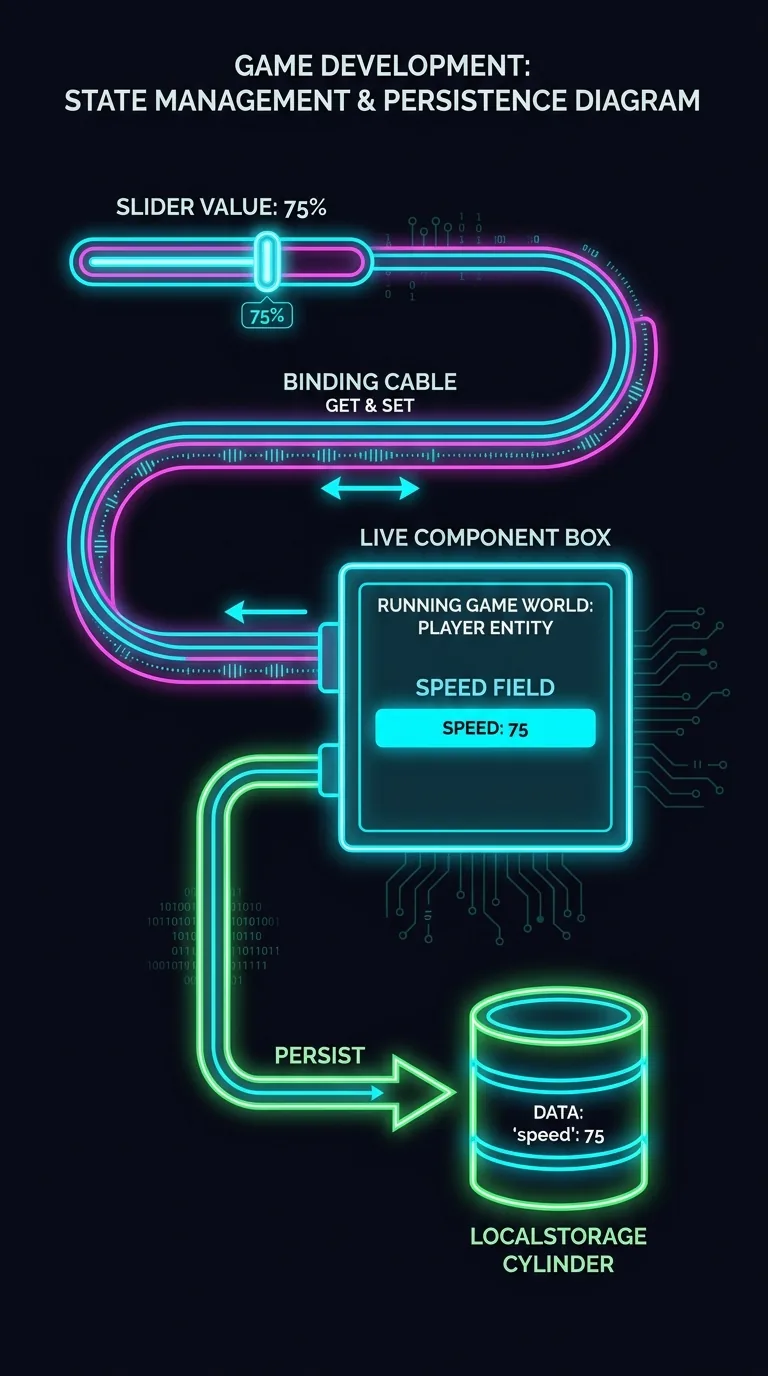
The three lines inside push are the whole idea, and each has one job. c.speed = v is the live wire. It writes straight into the running component. setSpeed(v) is the label. It updates the number shown next to the slider. vizStore.setPanelData(PANEL_ID, 'speed', v) is the save slot. It saves the value across reloads.
That c is a closureA function that captures and keeps a reference to a variable from where it was defined — here, the live component instance. over the live KeyboardMoverComponent, not a copy. It is the same instance KeyboardMoverSystem reads on its next onUpdate. Drag the slider and c.speed = v lands mid-frame. The very next frame moves the capsule at the new speed, so it speeds up before your finger leaves the mouse. Hold at 5.5 and walk a lap. Nudge to 7 and walk again. Then split the difference, all without moving from the spot you are testing. Edit-save-reload could never give you that.
The save slot uses two vizStoreThe reactive registry in @babylonjsmarket/viz that owns every panel's chrome, layout, and persisted state. methods, and they are short enough to read in full:
setPanelData writes your value into a per-panel data bag and saves it to localStorage under the panel's id. getPanelData reads it back. When nothing was ever saved, it falls through to a default. That is why the slider's starting value is getPanelData(PANEL_ID, 'speed', c.speed). It uses the saved number if you have tuned before, and the component's current value if you have not. On the next reload, that read returns what you set. So your tuning sticks until you copy it into the JSON as the new default. Each setPanelData also records a coalesced undo step that the panel header's undo/redo buttons walk. A fast slider drag collapses into one undoable change.
A faceMotion checkbox has the same shape, with checked instead of value. A reset button is a <button> whose handler sends the default back through push:
Read-only readouts: numbers the game writes and you watch
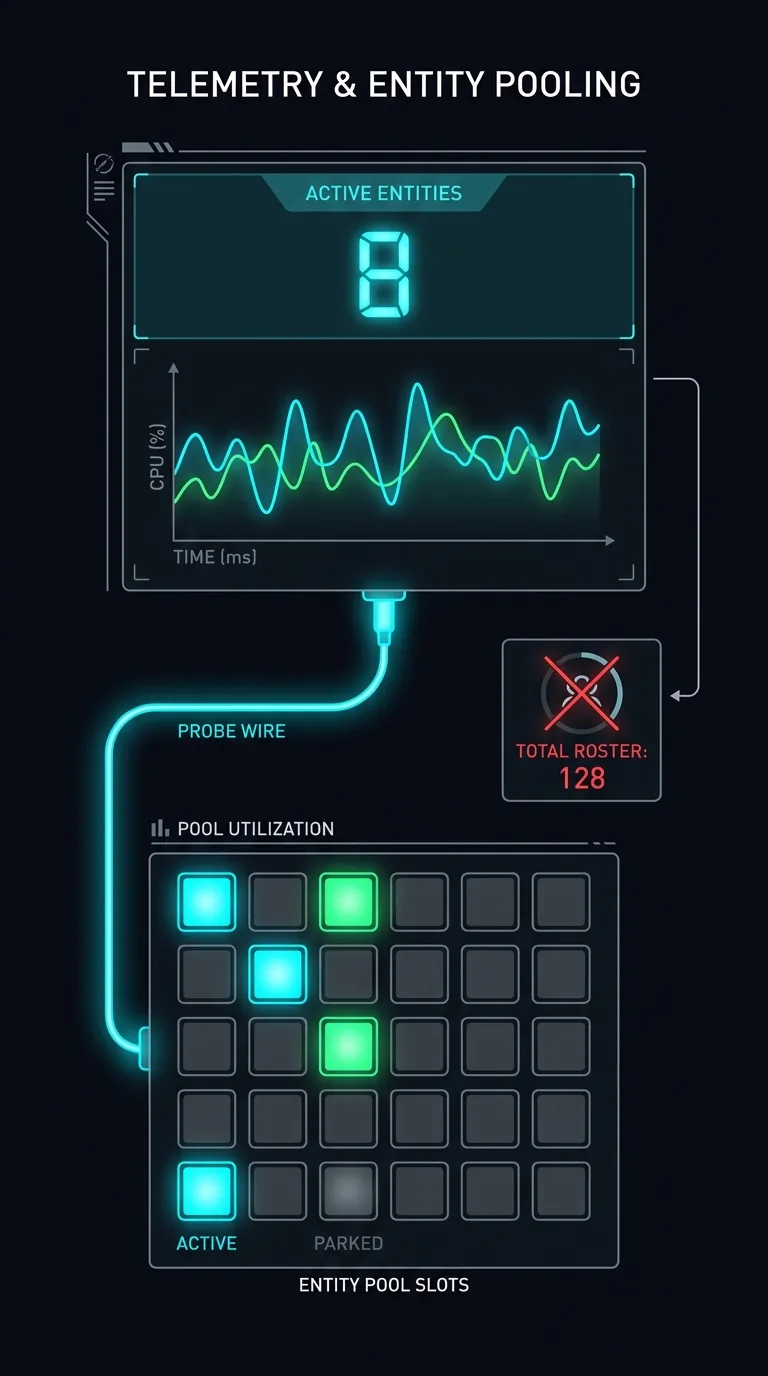
The same content function can also hold readouts. A readoutA panel display that only shows a live value, never edits it. is a live value the game produces that you only watch. The first one worth building shows that the pool from Lesson 7 is really recycling:
Drop coins and collect them. Watch the first number rise and fall as pooled entities wake and park, while the second number stays flat. world.getEntityCount() is the full roster, pooled entities included. getEntities().filter(e => e.active) is who is actually on the field. Watch the wrong one and a readout will tell you your pool is leaking when it is only recycling. onCleanup, also from solid-js, stops the timer when the panel closes, so a hidden panel is not polling. The mountArcadeViz source above is stricter still. It resyncs the entity snapshot only while the panel is visible. For a costlier readout you would guard the same way, skipping the work unless vizStore.isVisible(PANEL_ID) is true inside the interval.
A tuning panel grows the same way the game did. One slider becomes a dashboard: fire rate, live enemy count, an event tally. Every control has the same forty-line shape. When hand-written JSX gets hard to manage, @babylonjsmarket/viz itself describes panels as plain data that render themselves, with themes and a StateStepper built on this same vizStore.
What the course built, in one architecture
The debug tools were not a separate skill added at the end. The Entities panel reads the entity roster you have grown since Lesson 1. The EventBus debugger listens to the same bus your systems talk over. Your tuning panel is a System that owns a Component, registered against a store. Those are the same three ideas the whole course is built from, now turned back on the game itself. Components, systems, events, and a store, reused here to watch the game run.
You arrived guessing speed: 6. You are leaving with your hand on the slider while the game runs. Go tune something until it feels right.
Next: The Renderer Adapter — why no arcade component names Babylon or Three, and why that same instinct keeps the EventBus cheap enough to fire thousands of times a frame.